PLAYLIST SHARE IMPORT
PLAYLIST SHARE / IMPORT
SHARE FLOW
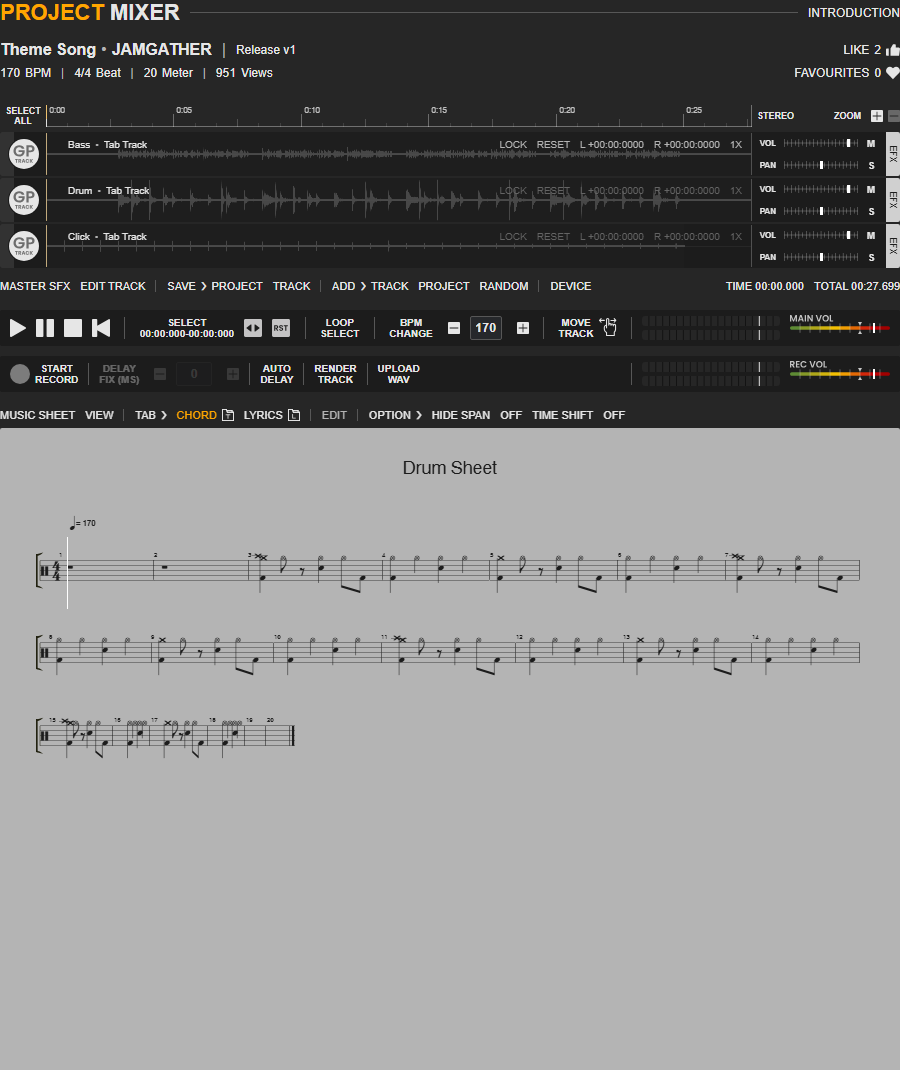
Playlist Share creates a link that opens Project Mixer in shared playlist mode. Import copies available shareable projects into the receiver account. Private, deleted, unavailable, or non-shareable items are skipped.
1. SHARE A PLAYLIST
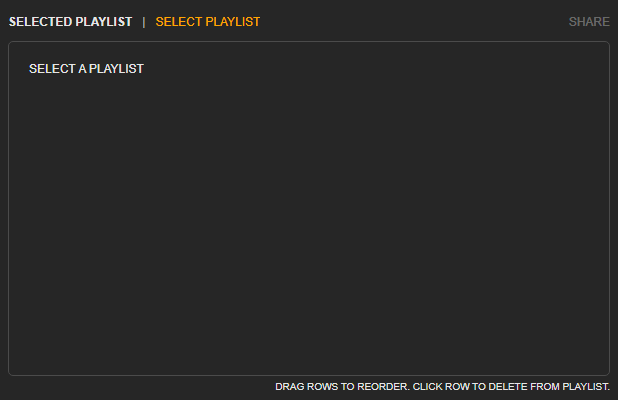
The sender shares from the playlist header line after choosing the correct playlist.
STEP 1 - Select the playlist
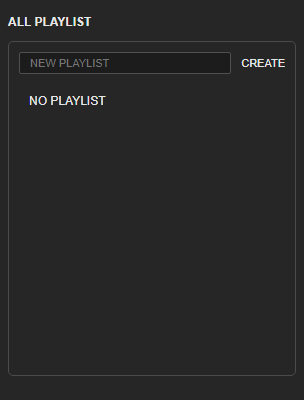
Go to Playlist Editor and select the playlist you want to share.
STEP 2 - Click SHARE
At the playlist title line, click the right-side SHARE button.
STEP 3 - Send the copied link
Jamgather creates and copies a link like project-mixer?playlist_share=TOKEN. Send this link to the target member.
2. RECEIVE AND IMPORT
The receiver opens the shared link and imports from the playlist header, not from the Back/Next area.
STEP 1 - Open the shared link
Open the shared link. Project Mixer enters shared playlist mode automatically.
STEP 2 - Find IMPORT beside the playlist name
Look at the MIXER playlist header line. IMPORT is on the right side of the playlist name. It is not in the BACK/NEXT area.
STEP 3 - Confirm IMPORT PLAYLIST
Click IMPORT, then confirm IMPORT PLAYLIST in the popup.
STEP 4 - Check the result
The imported playlist appears in the receiver Playlist Editor. Items that cannot be shared are skipped automatically.
LAST UPDATE: 2026-05-06
© 2026 Jamgather. All rights reserved.